

Entering data, applying a formula here and there, and formatting a worksheet by hand works fine for small, one-off tasks. It starts to break down once the work involves larger datasets, recurring reports, or anything that needs to stay accurate as new data comes in.
Basic Excel use typically means working directly in unmanaged cell ranges, writing formulas one at a time, and rebuilding summaries by hand each time the data changes. Analytical and reporting work is different. It depends on structured data, formulas that scale automatically, PivotTables that summarise without manual recalculation, and visualisations that update as the underlying data updates. These pieces work together rather than in isolation.
This points to a natural skill progression, moving from basic to intermediate to advanced Excel skills: starting with structured data and reliable formulas, moving into summarisation tools like PivotTables and lookup functions, and eventually into dashboards and automation. Each stage solves a different category of problem, and skipping the base makes the more advanced tools harder to use well.
Excel Tables: The Foundation of Reliable Reporting
An Excel table (created via Insert → Table, or Ctrl+T) turns a plain range of cells into a structured, named object with several practical advantages over an unmanaged range.
When new rows or columns are added directly below or beside a Table, it expands automatically. Formulas, formatting, and any PivotTable or chart connected to it can pick up the new data without being rebuilt. Tables also support structured references, where formulas point to column names ([Sales], [Region]) instead of fixed cell addresses like C2:C500. This makes formulas easier to read and far less likely to break when rows are inserted or deleted.
An unmanaged range needs formulas to be manually extended every time data grows, and any reference to a fixed range goes out of date the moment the dataset changes size. A table removes that upkeep.
This matters beyond formulas, too. Structured data is what PivotTables, lookup formulas, and charts are built on top of. Getting the data into a table first is often the single change that makes everything downstream more reliable, including the ability to build an interactive dashboard in Excel that updates as new data is added.
Excel Formulas for Data Analysis and Reporting
Conditional Calculations
SUMIFS, COUNTIFS, and AVERAGEIFS calculate a sum, count, or average based on one or more conditions. They’re used when a report needs a total or count filtered by category, for example, total sales for a specific region and month or the number of overdue invoices for a specific client. Rather than filtering data by hand and recalculating each time, these functions recalculate automatically as the underlying data changes.
Lookup Functions
XLOOKUP and INDEX MATCH pull a value from one table based on a match in another. These are used to connect related data, such as pulling a department name into a report based on an employee ID, without copying data across sheets.
Dynamic Functions
FILTER, UNIQUE, and SORT return a set of results that automatically adjusts as source data changes. FILTER can pull out only rows meeting certain conditions, UNIQUE can list distinct values from a column (useful for building dropdown or summary lists), and SORT can reorder results without a manual sort step. These are particularly useful for building report sections that stay current without being refreshed by hand
XLOOKUP and Other Lookup Functions for Connecting Data
Reporting data is rarely stored in a single table. Employee records, sales figures, and reference lists are often kept in separate sheets or workbooks, and lookup functions are what connect them.
XLOOKUP searches for a value in one range and returns a matching value from another range. It handles both exact and approximate matches, searches in either direction, and includes a built-in option for what to return if no match is found. INDEX MATCH achieves a similar result using two separate functions combined. It remains a common way to do lookups, particularly in older workbooks or in versions of Excel without XLOOKUP.
Common lookup errors include mismatched data types (a number stored as text won’t match a numeric lookup value), extra spaces in the lookup value, and searching a range that doesn’t actually contain the lookup column in the expected position.
Example: A dataset might list only an employee ID and salary. A separate sheet holds Employee ID, Name, and Department. A lookup function can pull the name and department into the salary report based on the shared employee ID, without typing that information in twice.
PivotTables for Summarising Large Excel Data
An Excel PivotTable summarises large datasets without writing individual formulas for every calculation. Instead of manually building SUMIFS formulas for every combination of category and time period, a PivotTable lets you drag fields into Rows, Columns, Values, and Filters and see the summary built automatically.
PivotTables support grouping, for example, grouping daily transaction dates into months, or grouping numeric values into ranges, which makes monthly, departmental, or product-level analysis straightforward without restructuring the source data. When source data changes, the PivotTable can be refreshed to reflect the update, instead of being rebuilt from scratch.
Compared to summaries built by hand, PivotTables are generally faster to set up, easier to adjust (dragging a field to a different area re-summarises instantly), and less prone to formula mistakes. The trade-off is that they summarise rather than calculate arbitrary custom logic, so some reporting needs still call for formulas alongside a PivotTable rather than instead of one.
PivotTables also often serve as the analytical source behind dashboard charts. A chart connected to a PivotTable updates automatically as the Pivot’s underlying data and grouping change.
Conditional Formatting for Finding Important Data
Conditional formatting applies formatting based on a cell’s value, which makes it useful for surfacing information that would otherwise need scanning a full dataset by hand.
Common uses include highlighting values that fall below a target, flagging duplicate entries, identifying overdue dates, and marking out high and low performers within a dataset using colour scales or icon sets.
The point of conditional formatting is to help a reader spot something important quickly, not to decorate a worksheet. Overusing colour, or applying it to data that doesn’t need highlighting, makes a report harder to read rather than easier. Used sparingly, it draws attention to the specific values that actually need action.
Data Validation and Dropdown Lists
Data validation limits what can be typed into a cell, which is useful anywhere consistent, structured input matters, particularly in reports that other people will update.
Dropdown lists built from data validation keep category or department entries consistent, stopping the mismatched spelling and formatting that comes from free-text entry (for example, “Marketing,” “marketing,” and “Mktg.” all meaning the same department). This consistency matters directly for reporting: a SUMIFS or PivotTable summary is only accurate if the category values it’s grouping by are entered the same way every time.
Data validation also supports interactive reports, such as dropdown-driven filters or input cells that control what a report shows, without needing the user to edit formulas directly.
Excel Charts: Choosing the Right Visualisation
The right chart depends on the question being asked, not on which chart looks the nicest.
- Column/bar charts: suited to comparing values across categories, such as sales by region.
- Line charts: suited to showing trends over time, such as monthly revenue
- Combo charts: useful when two different measures need to be shown together, such as revenue (bars) against growth rate (a line)
- Pie/donut charts: reasonable only for a small number of categories being compared as parts of a whole; they get hard to read with more than a handful of segments
- KPI cards: used to show a single headline number clearly, such as total revenue or current month’s total
Choosing a chart type should start with the question the report is trying to answer, whether that’s comparison, trend, makeup, or a single headline figure. The chart type follows from that question, rather than the other way around.
How Excel Skills Come Together in a Dashboard
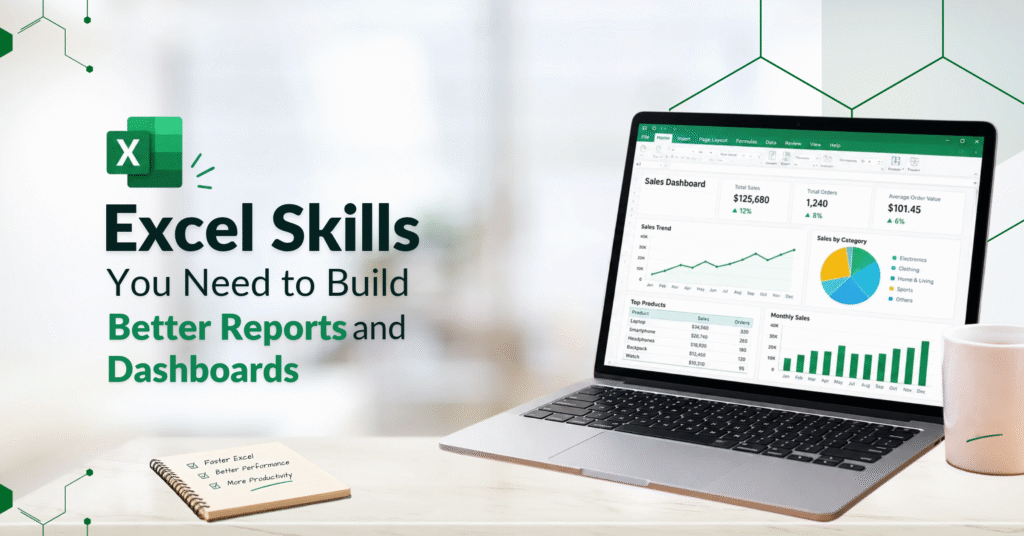
An Excel dashboard isn’t simply a collection of charts placed on one sheet. Its usefulness depends on the structure and analysis underneath it, which generally follows this order:
Excel Table → Formulas / Data Preparation → PivotTables → Charts → Slicers / Filters → Dashboard
Data is first structured into a Table, then cleaned and calculated using formulas, then summarised through PivotTables, then shown through charts built on those summaries, and finally made interactive through slicers and filters that let a viewer control what’s displayed. A dashboard built without this base underneath it, with charts pointed directly at raw, unmanaged data, tends to break or give wrong summaries as soon as the data changes.
Intermediate vs Advanced Excel Skills
Intermediate Excel Skills
This level generally includes:
- Excel Tables
- Formulas beyond basic arithmetic, including SUMIFS/COUNTIFS
- XLOOKUP
- PivotTables
- Charts
- Conditional formatting
- Data validation
These skills cover most day-to-day reporting and analysis needs and form a practical base for anyone regularly producing reports in Excel. Building fluency across intermediate Excel skills is typically enough to handle most recurring reporting work without needing automation.
Advanced Excel Skills
This level generally includes:
- More complex, multi-condition reporting logic
- Longer formula combinations
- Interactive dashboards
- Automation
- Power Query
- VBA
- Larger or more complex datasets that need extra care
Not every Excel user needs every advanced feature. The right skill level depends on the type of work being done. Someone producing a monthly departmental summary has different needs than someone pulling data together across dozens of workbooks. For those looking to build a wider range of Microsoft Excel skills across both reporting and automation, advanced topics build naturally on the intermediate base above.
Which Excel Skills Should You Learn First?
A practical learning order looks like this:
- Foundation: Tables, sorting and filtering, basic formulas.
- Intermediate: XLOOKUP, SUMIFS/COUNTIFS, PivotTables, charts, conditional formatting
- Advanced: Dashboards, Power Query, VBA, advanced reporting
The right learning order depends on the type of Excel work you do, but most users benefit from learning data organisation and formulas before moving into PivotTables, dashboards and automation. Trying to build a dashboard before understanding how the underlying data should be set up usually means rebuilding it later once the gaps show up.
Common Excel Reporting Problems and the Skill That Solves Them
| Excel problem | Useful skill |
| Data is hard to manage | Excel Tables |
| Need to match information across sheets | XLOOKUP |
| Need recurring summaries | PivotTables |
| Need to spot exceptions | Conditional Formatting |
| Need controlled input | Data Validation |
| Need to show trends | Charts |
| Need interactive reporting | Dashboards |
| Need repetitive automation | VBA / Power Query |
Each row reflects a specific, recurring Excel reporting problem matched to the skill that actually solves it, a useful reference when deciding what to learn next based on the problem in front of you right now.
How to Improve Your Excel Skills for Reporting
- Work with real datasets instead of sample files to understand common data inconsistencies.
- Replace repetitive manual calculations with formulas or PivotTables to save time and reduce errors.
- Learn formulas by solving practical problems rather than memorising functions in isolation.
- Create reusable reports that can be updated regularly instead of rebuilding them from scratch.
- Use PivotTables to analyse data before creating complex formula-based summaries.
- Build dashboards from clean, structured data rather than raw exports.
- Understand the workflow before automating it so that automation improves the process instead of repeating existing problems.
Conclusion
Strong Excel skills are not about knowing every Excel feature. They are about knowing which tool solves which reporting or analysis problem: a Table for structure, a formula for calculation, a PivotTable for summarisation, a chart for visualisation, and a dashboard for bringing it together interactively. Building these skills works best as a progression, starting with structured data and reliable formulas before moving into summarisation, visualisation, and automation as the reporting need actually calls for it.