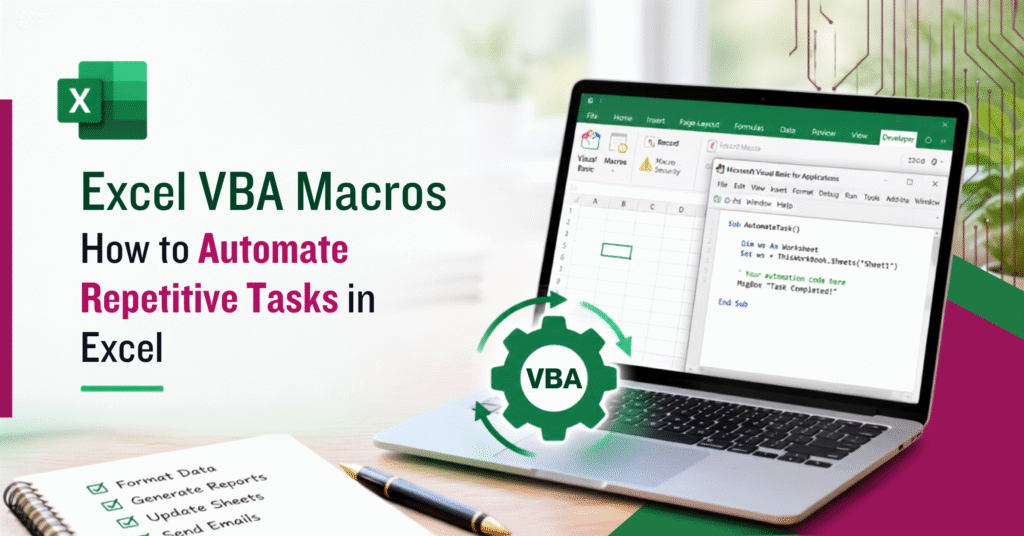

Anyone who works with Excel regularly runs into the same problem: certain tasks repeat every week or month without changing much. Reformatting a report before sending it out, copying data from one worksheet to another, cleaning up values pulled from a system export, or combining figures from several workbooks into one summary — these are all necessary, but they consume time without requiring much decision-making.
This is where Excel VBA Macros become useful. This type of Excel automation can reduce manual effort in recurring workflows. Excel VBA Macros automate repeated Excel operations by executing predefined instructions. Because VBA builds on core Excel skills, beginners should first be comfortable with worksheets, formulas, formatting, and basic workbook operations. A basic Excel course can help build this foundation before moving into VBA automation. Instead of performing the same sequence of clicks, formatting changes, or copy-paste actions every time, a macro runs that sequence automatically.
This article explains what VBA Macros actually do, how the automation works at a practical level, and where VBA fits compared to other Excel automation tools.
What Are Excel VBA Macros?
A macro is a recorded or written set of instructions that Excel executes to perform a task. VBA (Visual Basic for Applications) is the programming language behind those instructions. When people say “VBA macros”, they usually mean automation built using VBA code, rather than a macro created purely through recording.
Excel’s built-in Macro Recorder captures the exact clicks and menu actions a user performs and converts them into VBA code. This is useful for simple, fixed sequences, but recorded macros tend to be rigid — they reference specific cells, sheets, or formatting choices exactly as recorded, with no flexibility for variation.
Custom VBA code, by contrast, is written directly and can include logic, making VBA automation more flexible for tasks that involve changing conditions or data. This allows the automation to adapt to different data sizes, sheet names, or conditions instead of repeating one fixed action. For those looking to develop these skills in a structured setting, the VBA Excel course in Singapore covers VBA programming concepts and Excel-based automation.
| Macro | VBA |
| Automated sequence of actions | Programming language used to create and customize automation |
| Useful for simple repeated actions | Supports custom logic and complex workflows |
| Created by recording or writing code | Written directly to control Excel objects and behaviour |
How Excel VBA Automation Works
At a basic level, Excel macro automation follows this flow:
Input/Data → VBA Logic → Excel Objects → Automated Action → Output
A macro reads or receives data, applies logic written in VBA, acts on Excel objects such as worksheets or ranges, and produces a result — a formatted report, a cleaned dataset, or a consolidated file.
A few core concepts make this possible:
Sub-procedures. VBA code is typically organised inside a Sub procedure — a named block of code that runs when the macro is executed. For example, a Sub named FormatReport() might contain all the steps needed to format a worksheet.
Variables. Variables store values while the macro runs — a row number, a worksheet name, and a running total. For instance, a variable can hold the last used row in a column so the macro knows where data ends, even if that number changes each month.
Conditions. If…Then statements let the macro make decisions. For example, a macro might check if a cell value is negative and apply a different format only in that case.
Loops. For and For Each loops let the same action repeat across multiple rows, cells, or worksheets — this is what turns a single action into automation across an entire dataset.
Excel objects. VBA interacts with Excel through objects such as Workbook, Worksheet, Range, and Cells. A line like Worksheets(“Report”). Range(“A1:D1”). Font.Bold = True directly manipulates a specific part of a specific sheet.
What Can You Automate with Excel VBA Macros?
Formatting
Standardising report formatting, adjusting column widths, applying consistent number formats, or formatting several worksheets the same way are common uses of Excel macros
Problem: A weekly report needs the same formatting applied to a new sheet each time. VBA approach: A macro loops through the relevant range and applies fonts, borders, and number formats. Result: Formatting is applied consistently without repeating the same manual steps each week.
Data Cleaning
Removing unwanted rows, finding and replacing inconsistent values, or standardising text and number formats are common Excel data cleaning tasks.
Problem: Data exported from another system contains blank rows and inconsistent text casing. VBA approach: A macro identifies blank rows and deletes them, then standardises text formatting across the relevant column. Result: The dataset is ready for further use without manual row-by-row correction.
Report Generation
Weekly or monthly reports often follow a fixed template with changing data, making them suitable for automated Excel reports.
Problem: A monthly report template needs updated figures copied into predefined cells. VBA approach: A macro pulls values from a source sheet and places them into the correct cells in the template. Result: The report is populated consistently each month using the same structure.
Workbook Consolidation
VBA can open multiple workbooks, extract specific data from each, and combine it into one master workbook — useful when several files follow a similar structure.
Data Transfer
VBA can copy or move data between worksheets or workbooks based on defined conditions, such as transferring only rows that meet a certain criterion.
Email/Report Workflows
VBA can also interact with Outlook to prepare recurring emails using data from Excel—for example, generating a summary email with figures pulled directly from a report sheet.
Practical Excel VBA Macro Examples
Example 1: Format Multiple Worksheets A loop cycles through each worksheet in a workbook and applies the same header formatting, so every sheet looks consistent without formatting each one manually.
Example 2: Clean Repetitive Data A macro checks each row in a column for blank or duplicate values and removes them, applying the same cleaning logic across the full dataset.
Example 3: Generate a Monthly Report A macro copies specific values from a data sheet into fixed positions on a report template, following the same layout each month.
Example 4: Consolidate Multiple Excel Files A macro opens each file in a folder, copies relevant data from a defined range, and pastes it into a master workbook — repeating the process for every file found.
Example 5: Prepare Email Reports A macro reads summary figures from a worksheet and inserts them into an Outlook email body, so a recurring status update can be generated with current data.
Sub FormatAllSheets()
Dim ws As Worksheet
For Each ws In ThisWorkbook.Worksheets
ws.Range(“A1:D1”).Font.Bold = True
ws.Columns(“A:D”).AutoFit
Next ws
End Sub
This short example shows the pattern used throughout: a loop applies the same action across multiple objects — in this case, every worksheet in the workbook.
VBA Loops: The Core of Repetitive Excel Automation
Loops are what separate a one-time action from automation. Performing a formatting change once is a manual task. Applying that same change across every row, cell, or worksheet without repeating the instruction manually is automation — and loops make that possible.
For loops repeat an action a specific number of times, often used when looping through rows by index.
For each loop, repeat an action across every item in a collection, such as every worksheet in a workbook or every cell in a range, without needing to know the exact count in advance.
Common uses include looping through rows to check values, looping through cells to apply formatting, looping through worksheets to standardise layout, and looping through workbooks during consolidation tasks.
When Should You Use VBA for Excel Automation?
VBA is a reasonable choice when:
- The task is repetitive and follows defined steps
- Custom logic or conditions are required
- Multiple worksheets or workbooks are involved
- The workflow is primarily Excel-based
A reusable, file-based automation is needed.
VBA may not be the best choice when:
- The task is mainly about importing, cleaning, or transforming data — Power Query is often more appropriate
- The automation needs to run in the cloud or connect multiple apps — Power Automate may fit better
- The action is simple and performed only occasionally — the Macro Recorder alone may be sufficient
VBA is not universally better than these alternatives — the right tool depends on the nature of the task.
Excel VBA vs Macro Recorder vs Power Query
Power Query: Importing, cleaning, and transforming data.
| Tool | Best suited for |
| Macro Recorder | Simple repeated actions with no variation |
| VBA | Custom Excel automation involving logic, loops, and multiple objects |
| Power Query | Importing, cleaning, and transforming data |
| Power Automate | Cloud-based and cross-application workflow automation |
Each tool solves a different type of problem. Macro Recorder works well for fixed, one-off sequences. VBA is suited to logic-driven automation within Excel. Power Query is generally more efficient for data transformation tasks. Power Automate is intended for workflows that extend beyond Excel itself.
Choosing between VBA, Power Query, and other Excel tools depends on the type of task you need to automate. If you are also developing your broader Excel skills for reporting, data analysis, or day-to-day spreadsheet work, exploring related Excel training courses can help you understand where different Excel tools fit into your workflow.
Common VBA Macro Problems
Several practical issues come up regularly when working with VBA:
- Macro security settings can block macros from running unless the file is trusted
- Macro-enabled files must be saved as .xlsm, not .xlsx
- Hard-coded ranges break when data size changes
- Macros referencing specific worksheet names fail if those names are changed.
- Runtime errors occur when expected data or sheets are missing
- Large datasets can slow execution if the code isn’t written efficiently
- Missing error handling causes macros to stop unexpectedly
- Poorly structured code becomes difficult to maintain or reuse
Most of these issues can be reduced by using dynamic ranges instead of fixed ones, adding basic error handling, and testing macros against varied datasets before relying on them regularly.
Practices for Reliable VBA Automation
- Use meaningful variable names instead of generic ones.
- Avoid unnecessary Select and Activate statements — reference objects directly.
- Use dynamic ranges that adjust to changing data size
- Add basic error handling so macros fail predictably rather than silently.
- Keep reusable logic in separate procedures or functions.
- Test macros against different dataset sizes and edge cases.
- Keep backups before running macros that modify files directly.
- Avoid hard-coding values that are likely to change over time
Conclusion
Excel VBA Macros are most useful when a recurring Excel process follows defined steps and benefits from custom logic. For anyone learning how to automate repetitive tasks in Excel using VBA, common applications include formatting multiple sheets, cleaning repetitive data, generating structured reports, and consolidating information across workbooks. Where a task is mainly about transforming data or running outside Excel entirely, other tools such as Power Query or Power Automate may be a better fit. Understanding this distinction is what makes VBA automation genuinely useful rather than a workaround applied to every problem.