
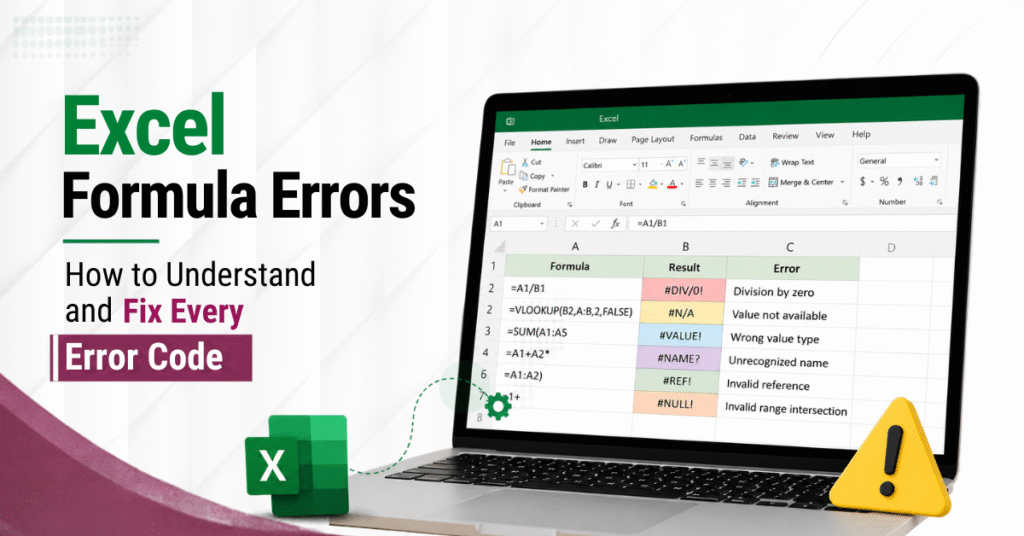

A formula that worked fine last week sometimes breaks today, and nothing in the sheet looks different at first glance. Someone added a row, deleted a column, or pasted data in a slightly different format, and now a cell that used to show a clean number shows a strange code starting with a hash symbol instead.
Excel formula errors aren’t random glitches. Each error code points to a specific, identifiable cause, and once you know how to read them, fixing a broken formula takes minutes instead of an afternoon of guessing and re-typing the same formula five different ways. This guide covers how to fix Excel formula errors properly, one code at a time, along with the habits that stop most of them from showing up in the first place.
What Excel Error Codes Are Actually Telling You
Before fixing anything, it helps to understand what these codes are for. Excel doesn’t just fail silently when a formula can’t calculate. It shows a specific error code because the internal engine already knows what category of problem occurred, whether that’s a missing reference, the wrong type of data, or a calculation that’s mathematically impossible.
This means the error message itself is the first clue, not something to dismiss and work around. Learning common Excel error codes turns troubleshooting into a process of elimination instead of trial and error.
#REF!: When a Formula Points to Something That No Longer Exists
The Excel #REF error shows up when a formula references a cell, row, column, or sheet that has since been deleted. The formula still exists, but whatever it was pointing to is gone, so Excel has nothing left to calculate against.
This usually happens after someone deletes a row or column near cells that other formulas depend on, or removes a sheet that was being referenced from elsewhere in the workbook. The fix depends on catching it early. If you delete something and immediately see #REF! appear elsewhere, undoing the deletion and inserting a blank row or column instead, rather than removing the original one, usually preserves the reference. If the damage is already done, the formula needs to be rebuilt pointing to the correct location.
One habit that reduces this significantly is avoiding formulas that reference single, isolated cells scattered across a sheet. Referencing a defined range or a named cell tends to survive structural changes to the sheet far better than a loose individual reference does.
#VALUE!: When Excel Gets the Wrong Type of Data
The Excel #VALUE error appears when a formula expects one kind of input, usually a number, but finds something else instead, like text, in one of the cells it’s referencing. A common example is trying to add two cells together when one of them contains a number that’s technically stored as text. Visually, it looks identical to a real number. To Excel’s calculation engine, it isn’t the same thing at all.
This is one of the more frequent issues that shows up when data arrives from an outside source, such as a CSV export, a copied table from a website, or an entry pasted from a different system entirely. The number looks fine on screen, but it’s carrying hidden text formatting that blocks any calculation involving it.
A large share of these mismatches trace back to data that wasn’t cleaned up before formulas were built on top of it. Extra spaces, inconsistent number formatting, and text disguised as numbers are exactly the kind of issues that create #VALUE! errors down the line. Our guide on trimming data in a Microsoft Excel spreadsheet walks through how to clean up this kind of inconsistency before it ever reaches a formula, which prevents a good portion of these errors from appearing at all.
#DIV/0!: Dividing by an Empty or Zero Value
This one is fairly direct to diagnose. A formula is trying to divide by a cell that’s either empty or contains a zero, and mathematically, that calculation has no valid result.
This error shows up constantly in percentage calculations and average formulas, especially in reports that include rows without data yet, such as a monthly summary where this month’s numbers haven’t been entered. The standard way to fix #DIV/0 error in Excel is wrapping the formula in an IFERROR function, which lets you display a blank cell, a zero, or a custom message instead of the error code, without changing what the formula calculates once real data does arrive.
#NAME?: When Excel Doesn't Recognize Part of the Formula
An Excel #NAME error usually means one of three things: a function name is misspelled, a piece of text is missing its required quotation marks, or the formula references a named range that doesn’t actually exist in the workbook, often because it was renamed or deleted after the formula was written.
Excel is specifically telling you it doesn’t recognize a piece of what you typed, not that the underlying logic is wrong. Double checking the exact spelling of the function name, and confirming that any named ranges used in the formula still exist under Name Manager, resolves the vast majority of these cases.
#N/A: When a Lookup Comes Up Empty
The Excel #N/A error is one of the most common issues in lookup based formulas. It means the formula searched for a specific value and didn’t find a matching one, which happens constantly with VLOOKUP, HLOOKUP, and similar functions.
The frustrating part is that the mismatch causing this is often invisible to the eye. Extra spaces, different capitalization, or a date stored as text in one column and as an actual date value in another can all cause two values that look identical to fail to match. Checking for these hidden formatting differences, rather than assuming the value simply isn’t in the sheet, usually finds the real cause quickly.
#NUM! and #NULL!: The Less Common but Still Confusing Errors
Two error codes show up less often but tend to confuse people more when they do, mostly because they’re rarer.
An Excel #NUM error appears when a formula involves a number that’s invalid for the calculation being performed, such as asking for the square root of a negative number, or when a calculation produces a result too large or too small for Excel to represent. This is more common in formulas involving iterative calculations or financial functions than in everyday spreadsheets.
An Excel #NULL error appears when a formula uses a space instead of a comma between two cell ranges, which Excel interprets as trying to find the intersection between two ranges that don’t actually overlap. It’s usually a straightforward typo rather than a deeper structural problem, and correcting the punctuation between the ranges resolves it immediately.
A Practical Way to Debug a Broken Formula
Rather than staring at a long formula and guessing which part failed, a more reliable method is breaking it into smaller pieces. Selecting part of a formula inside the formula bar and pressing F9 shows what that specific piece evaluates to, without permanently changing the formula. This makes it possible to isolate exactly which section is causing the problem instead of assuming the entire formula needs to be rebuilt.
This becomes especially useful once formulas start getting layered inside one another, where a single visible error at the outermost level might actually originate two or three steps deeper inside the calculation. Our guide on using nested functions in Excel covers how to structure these layered formulas so each part stays readable, which also makes them significantly easier to trace when something eventually breaks.
Excel’s built in Evaluate Formula tool, found under the Formulas tab, works similarly by walking through a calculation step by step, showing exactly where a valid result turns into an error. For anyone doing regular Excel formula troubleshooting, this tool is worth learning alongside the F9 method, since the two work well together depending on how the formula is structured.
Using IFERROR and IFNA the Right Way
The IFERROR function catches any error a formula produces and replaces it with something more useful, whether that’s a blank cell, a custom message, or an alternative calculation. IFNA does the same thing, but only for #N/A errors specifically, which matters when you want other genuine errors, like a #REF! caused by a real structural problem, to stay visible instead of getting silently hidden.
This distinction matters more than it might seem. Wrapping every formula in a broad IFERROR can accidentally hide a real problem that needs fixing, not just an expected gap in the data. Using IFNA specifically for lookup formulas, and reserving IFERROR for situations where any error type genuinely should be suppressed, keeps error handling useful instead of turning it into a way to avoid noticing actual mistakes.
Building Habits That Prevent Errors Before They Start
Fixing errors after they appear is a reactive skill. Preventing them in the first place comes down to a few structural habits in how a workbook is built and maintained as it grows.
This includes things like how ranges are referenced, how consistently data types are kept uniform across a column, and how a sheet is organized once more than one person starts editing it regularly. None of these habits are complicated individually, but skipping them tends to be exactly why formulas that worked fine for months suddenly start breaking once a workbook gets larger or more people start using it. Our guide on advanced Excel spreadsheets: basic dos and don’ts goes into these habits in more detail, covering the kind of structural choices that keep a growing spreadsheet stable instead of fragile.
Reading the Error Instead of Fearing It
Most formula errors aren’t a sign that something is fundamentally broken. They’re a specific, narrow mismatch between what a formula expects and what it actually finds, and the error code itself already tells you which category to check first.
A #REF! sends you looking for a deleted reference. A #DIV/0! sends you looking for an empty denominator. A #N/A sends you checking for a hidden mismatch in your lookup values. Once reading these codes becomes routine, troubleshooting stops feeling like guesswork and starts feeling like following a short, predictable checklist.